



Changelog/Levers 1.4
Levers 1.4: snow on your Mac, for the holidays

Quick answer
Levers 1.4 adds Snow, a switch in the Screen tab. Snow falls on your desktop behind your windows, or over them, with a drift that builds along the bottom of the screen and flakes that blow aside when you swipe the pointer. It disappears the moment your screen is shared or recorded, falls lighter on battery, and turns itself off on 7 January. It is a free update.
Turn on Snow
Snow is in the Screen tab of the dropdown, beside Hide the Notch and Backdrop. Like every switch, it has a hotkey, an off timer, and a place in modes, rules and the Shortcuts app.
- 1
Click the Levers icon in the menu bar and open the Screen tab.
- 2
Turn on Snow. Click its name for its settings.
- 3
Or press ⌃⌥Space in any app, type snow, and press Return.
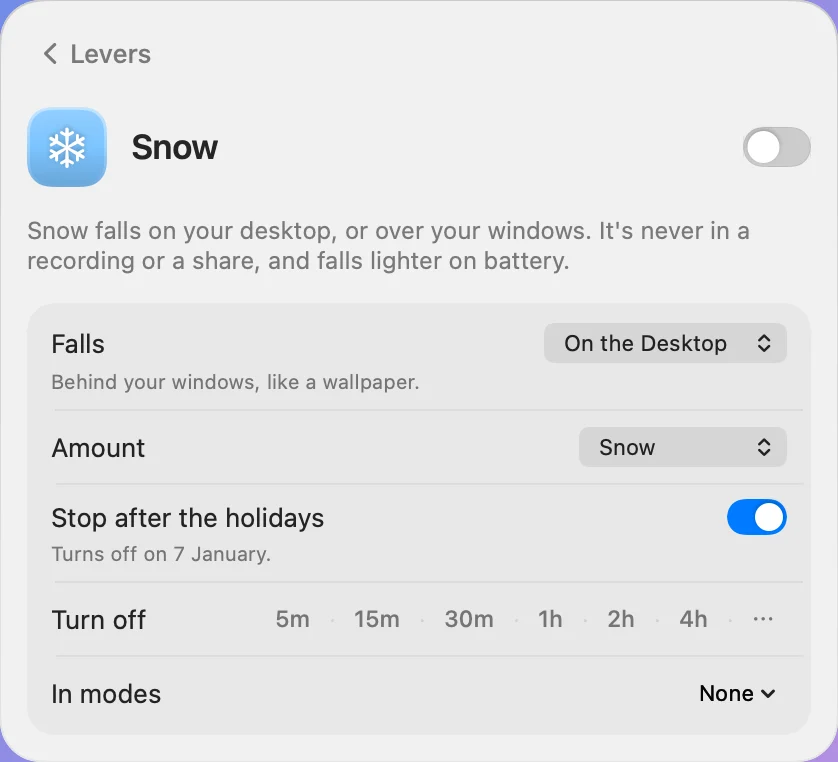
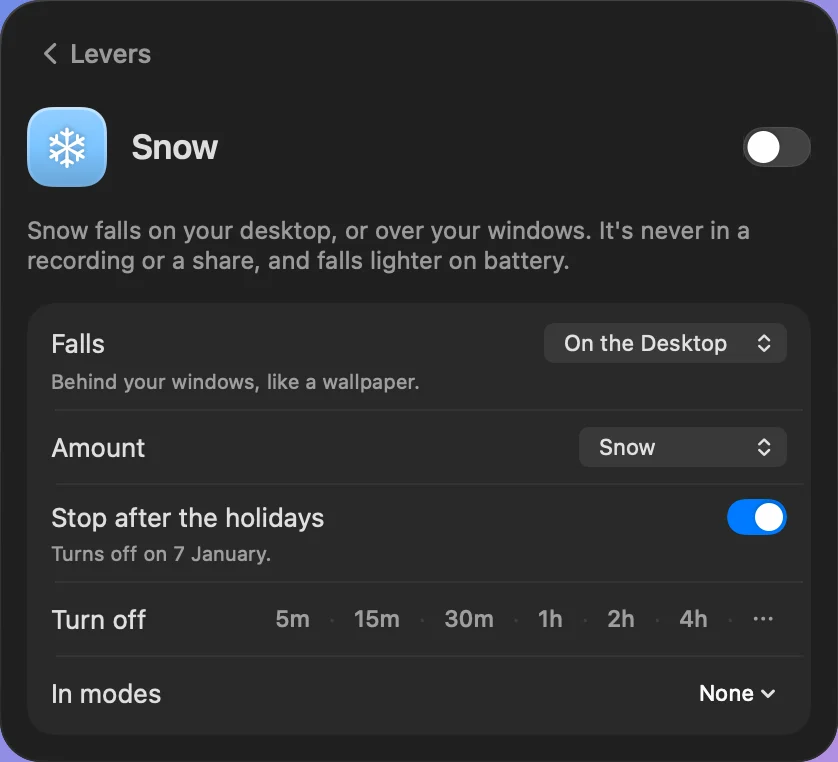
On the desktop or over your windows
On the Desktop is the default: the snow falls behind your windows, like a moving wallpaper, and never covers what you are working on. Over Windows lets it fall over everything, the Dock included. Clicks always go through it.
Amount sets how thick it falls: Light Snow, Snow or Heavy Snow. Far flakes are small and slow, near ones larger, and a few six-armed crystals turn as they fall.
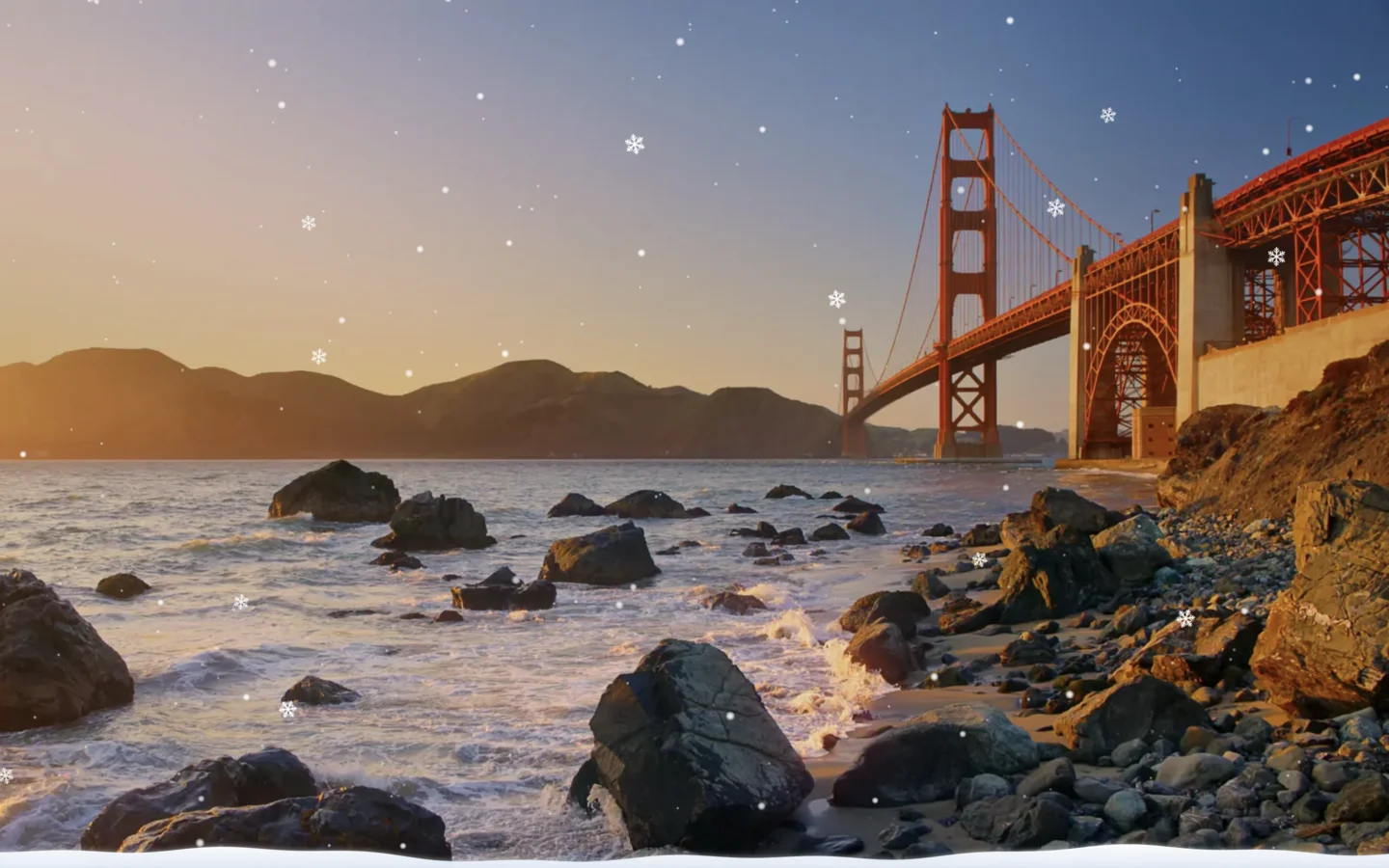
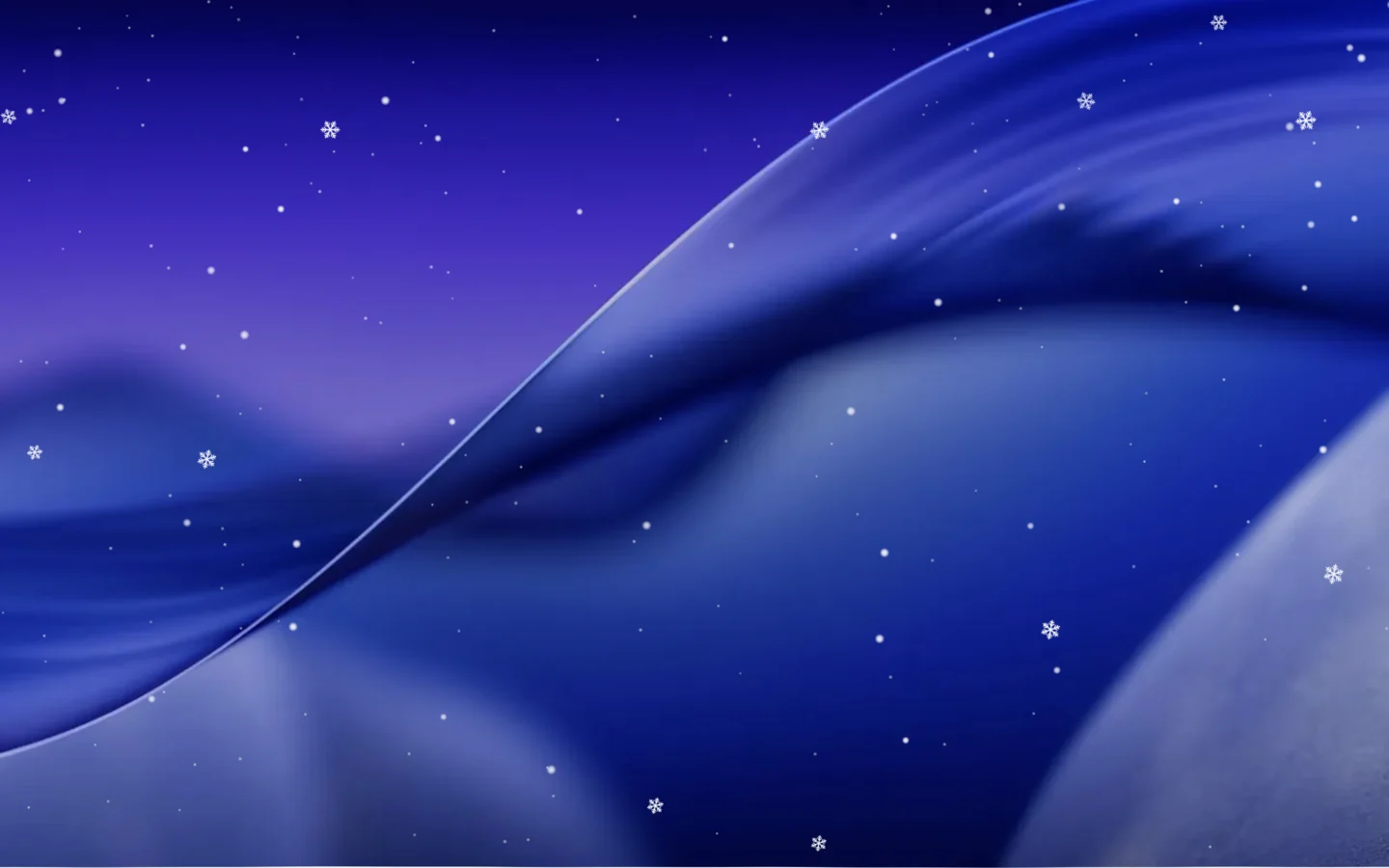
Snow builds up, and the pointer blows it
While it snows, a drift builds along the bottom of the screen: in ten minutes for Light Snow, five for Snow and two and a half for Heavy Snow. It goes when you turn Snow off.
Swipe the pointer quickly to one side and the flakes blow that way for a moment, the near ones further than the far, then settle back.
It stops after the holidays
Stop after the holidays is on by default. Snow turned on from November turns itself off on 7 January, so nobody finds snow on their Mac in March. If the Mac is off that day, the snow stays off the next time Levers opens. Turn the setting off to keep it snowing.
Why a switch for the season
A Mac you look at all day is part of the room you work in. In December people put up lights and change their wallpaper. Snow does the same for the screen, in one click, with nothing else to install.
It is a switch, so it works like the others. A mode can turn on Snow and Do Not Disturb for the evening, and a rule can start it when the working day ends at a set time.
And it ends by itself. Something made for the season should go with the season, not stay on the screen until someone remembers to turn it off.
Questions people ask
Does Snow slow my Mac down?
No. macOS’s own animation system draws the flakes on the graphics chip, and Levers draws nothing frame by frame. Snow rests behind full-screen apps and while the screens sleep, and falls half as thick on battery or in Low Power Mode.
Will people see the snow in my Zoom call?
No. Snow disappears the moment anything shares or records your screen, and comes back when it stops.
Does it snow on every display?
Yes, on every screen connected to the Mac.
Can I keep it after the holidays?
Yes. Turn off Stop after the holidays on Snow’s page, and it snows until you turn it off.
Everything in 1.4
Levers 1.4 is a free update. Levers offers it on its own, or download it from leversmac.com.
- New: Snow. A switch in the Screen tab: snow falls on your desktop behind your windows, or over them, as Light Snow, Snow or Heavy Snow. A drift builds along the bottom of the screen, and a quick swipe of the pointer blows the flakes aside.
- New: Never in a share. It goes the moment your screen is shared or recorded, and comes back when you stop. It falls lighter on battery and rests behind a full-screen app.
- New: Stop after the holidays. On by default: Snow turns itself off on 7 January.
14-day refund